Server-Side Tracking, Tutorials & Guides
How to Set Up Server-Side Tracking on Your Own VPS (Step-by-Step)
A complete step-by-step guide to self-hosting server-side GTM on a VPS. Covers Docker setup, Nginx reverse proxy, SSL, and ongoing maintenance.
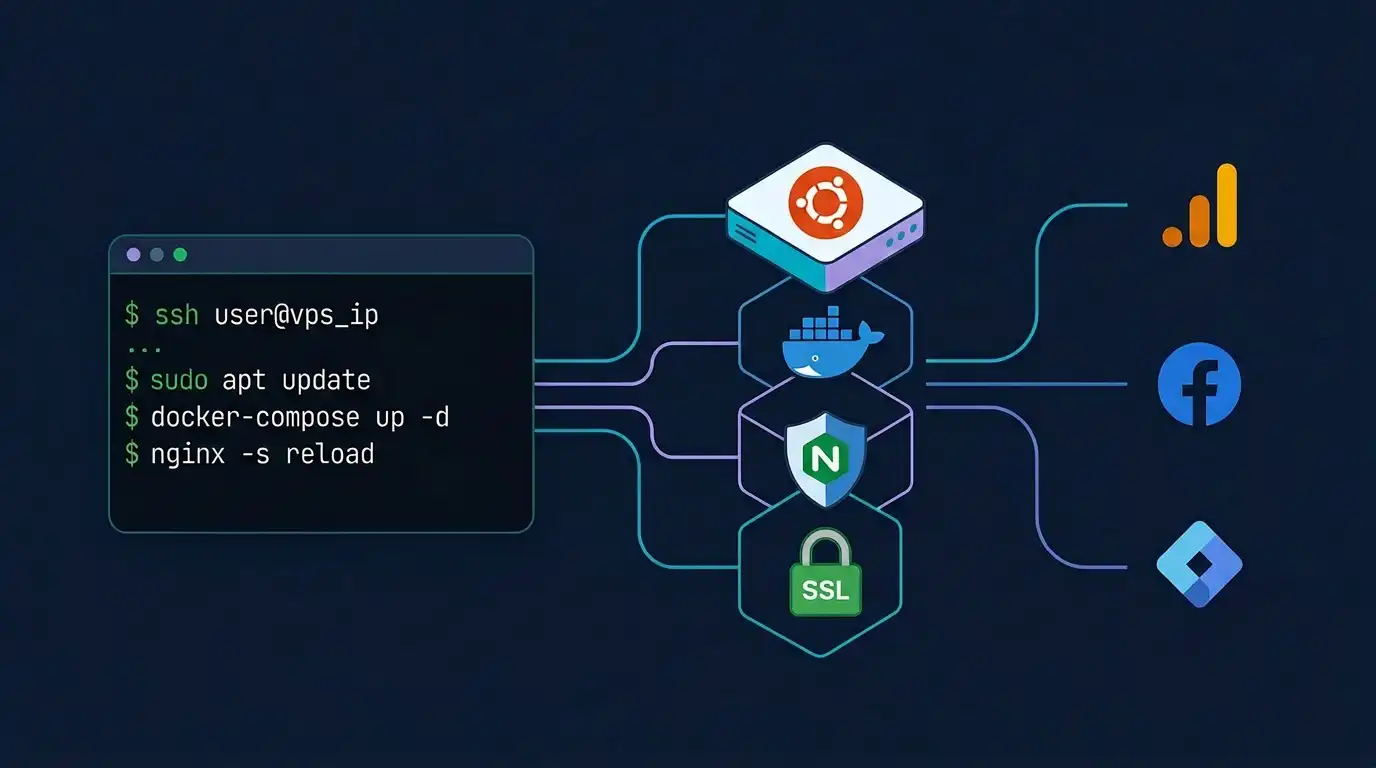
How to Set Up Server-Side Tracking on Your Own VPS: Complete Ubuntu + Docker Guide (2026)
Published by ServerPixel BD — April 2026 | Reading time ≈ 14 min
Running your own server-side Google Tag Manager (sGTM) container on a VPS gives you full control over your tracking data, eliminates per-request fees from managed platforms, and lets you keep first-party data exactly where you want it. In this guide you will learn every step — from spinning up an Ubuntu VPS to configuring Docker, Nginx, Let's Encrypt SSL, and linking it all to your GTM Server Container — using nothing but SSH commands.
Whether you are an e-commerce owner, an agency managing multiple clients, or a developer who wants a privacy-first, cost-efficient tracking stack, this tutorial has you covered. And if at any point you would rather hand the work to experts, ServerPixel BD offers fully managed server-side tracking hosting starting at just ৳1,190/month.
Table of Contents- 1. Prerequisites & What You Need
- 2. Initial VPS Setup & SSH Access
- 3. Install Docker & Docker Compose
- 4. Deploy the GTM Server-Side Container
- 5. Configure Nginx as a Reverse Proxy
- 6. Secure with Let's Encrypt SSL (Certbot)
- 7. Subdomain & DNS Configuration
- 8. Connect GTM Web Container to Your Server
- 9. GA4 & Meta CAPI Integration
- 10. Security Hardening & Maintenance
- 11. Common Mistakes to Avoid
- 12. Self-Hosted vs Managed Hosting (ServerPixel BD)
- 13. FAQ
- 14. Conclusion & Next Steps
1. Prerequisites & What You Need
Before you touch the terminal, make sure the following items are ready:
| Requirement | Details |
|---|---|
| VPS Provider | Any provider running Ubuntu 22.04 LTS or 24.04 LTS (Contabo, DigitalOcean, Hetzner, Vultr, Linode, etc.) |
| Minimum Specs | 2 vCPU, 2 GB RAM, 40 GB SSD — handles up to ~500k requests/month comfortably |
| Domain / Subdomain | e.g. gtm.yourdomain.com — you need DNS access to create an A record |
| GTM Server Container | Created at tagmanager.google.com → Server type container |
| Container Config Key | Found in GTM → Admin → Container Settings (looks like aW50…) |
| SSH Client | Terminal (macOS/Linux) or PuTTY / Windows Terminal |
| Basic CLI Knowledge | Comfortable running commands as root or via sudo |
Don't want to manage a VPS yourself? ServerPixel BD's managed plans handle all infrastructure, Docker, SSL, monitoring, and updates — so you can focus on your marketing data.
2. Initial VPS Setup & SSH Access
2.1 Connect to Your VPS
After purchasing your VPS, you will receive a public IP address and root credentials. Open your terminal and connect:
ssh root@YOUR_SERVER_IPIf you set up SSH key authentication during provisioning:
ssh -i ~/.ssh/your_key root@YOUR_SERVER_IP2.2 Update & Upgrade the System
Always start with a fully patched system:
apt update && apt upgrade -y2.3 Set the Hostname & Timezone
hostnamectl set-hostname gtm-server
timedatectl set-timezone UTC2.4 Create a Non-Root User (Recommended)
adduser deploy
usermod -aG sudo deploy2.5 Basic Firewall Setup
ufw allow OpenSSH
ufw allow 80/tcp
ufw allow 443/tcp
ufw enable
ufw status3. Install Docker & Docker Compose
Google's sGTM container image (gcr.io/cloud-tagging-10302018/gtm-cloud-image) runs as a Docker container. Install Docker Engine on Ubuntu:
3.1 Remove Old Versions (if any)
apt remove -y docker docker-engine docker.io containerd runc 2>/dev/null3.2 Install Dependencies & Add Docker's Official Repository
apt install -y ca-certificates curl gnupg lsb-release

install -m 0755 -d /etc/apt/keyrings
curl -fsSL https://download.docker.com/linux/ubuntu/gpg | \
  gpg --dearmor -o /etc/apt/keyrings/docker.gpg
chmod a+r /etc/apt/keyrings/docker.gpg

echo \
  "deb [arch=$(dpkg --print-architecture) signed-by=/etc/apt/keyrings/docker.gpg] \
  https://download.docker.com/linux/ubuntu \
  $(lsb_release -cs) stable" | \
tee /etc/apt/sources.list.d/docker.list > /dev/null3.3 Install Docker Engine & Compose Plugin
apt update
apt install -y docker-ce docker-ce-cli containerd.io docker-buildx-plugin docker-compose-plugin3.4 Verify Installation
docker --version
docker compose versionExpected output: Docker version 27.x and Docker Compose version v2.x.
3.5 Allow Non-Root User to Run Docker
usermod -aG docker deploy4. Deploy the GTM Server-Side Container
4.1 Create the Project Directory
mkdir -p /opt/gtm-server && cd /opt/gtm-server4.2 Create docker-compose.yml
Open the file in nano (or your preferred editor):
nano docker-compose.ymlPaste the following configuration. Replace YOUR_CONTAINER_CONFIG with the config key from GTM:
version: "3.8"

services:
  gtm-server:
    image: gcr.io/cloud-tagging-10302018/gtm-cloud-image:stable
    container_name: gtm-server
    restart: always
    ports:
      - "8080:8080"
    environment:
      CONTAINER_CONFIG: "YOUR_CONTAINER_CONFIG"
      RUN_AS_PREVIEW_SERVER: "false"
      PORT: "8080"
    healthcheck:
      test: ["CMD", "curl", "-f", "http://localhost:8080/healthz"]
      interval: 30s
      timeout: 10s
      retries: 3

  gtm-preview:
    image: gcr.io/cloud-tagging-10302018/gtm-cloud-image:stable
    container_name: gtm-preview
    restart: always
    ports:
      - "8081:8080"
    environment:
      CONTAINER_CONFIG: "YOUR_CONTAINER_CONFIG"
      RUN_AS_PREVIEW_SERVER: "true"
PORT: "8080"Save the file (Ctrl + O, Enter, Ctrl + X).
4.3 Pull the Image & Start Containers
docker compose pull
docker compose up -d4.4 Verify They Are Running
docker compose psYou should see both gtm-server and gtm-preview with status Up.
4.5 Quick Health Check
curl -I http://localhost:8080/healthzA 200 OK response confirms the container is healthy.
5. Configure Nginx as a Reverse Proxy
Nginx sits in front of Docker, handles SSL termination, and proxies traffic to port 8080 (production) and 8081 (preview).
5.1 Install Nginx
apt install -y nginx5.2 Create the Server Block
nano /etc/nginx/sites-available/gtm-serverPaste this configuration — replace gtm.yourdomain.com with your actual subdomain:
server {
    listen 80;
    server_name gtm.yourdomain.com;

    # Redirect all HTTP to HTTPS (handled after Certbot runs)
    location / {
        proxy_pass http://127.0.0.1:8080;
        proxy_set_header Host $host;
        proxy_set_header X-Real-IP $remote_addr;
        proxy_set_header X-Forwarded-For $proxy_add_x_forwarded_for;
        proxy_set_header X-Forwarded-Proto $scheme;
        proxy_buffering off;
        proxy_read_timeout 60s;
    }

    # Preview server path (optional — for GTM preview mode)
    location /gtm-preview/ {
        proxy_pass http://127.0.0.1:8081/;
        proxy_set_header Host $host;
        proxy_set_header X-Real-IP $remote_addr;
        proxy_set_header X-Forwarded-For $proxy_add_x_forwarded_for;
        proxy_set_header X-Forwarded-Proto $scheme;
    }
}5.3 Enable the Site & Test Config
ln -s /etc/nginx/sites-available/gtm-server /etc/nginx/sites-enabled/
nginx -t
systemctl reload nginx5.4 Hide the Nginx Version (Security Best Practice)
nano /etc/nginx/nginx.confInside the http { } block, add:
server_tokens off;Then reload:
systemctl reload nginx6. Secure with Let's Encrypt SSL (Certbot)
A valid SSL certificate is mandatory for server-side tracking. Browsers will not send first-party cookies to a non-HTTPS endpoint.
6.1 Install Certbot
apt install -y certbot python3-certbot-nginx6.2 Obtain the Certificate
certbot --nginx -d gtm.yourdomain.comFollow the prompts. Certbot will automatically update your Nginx config to redirect HTTP → HTTPS and configure the TLS certificate.
6.3 Verify Auto-Renewal
certbot renew --dry-runIf the dry run succeeds, your certificates will auto-renew every 60–90 days via a systemd timer.
6.4 Verify HTTPS
curl -I https://gtm.yourdomain.com/healthzYou should see HTTP/2 200 with valid certificate headers.
7. Subdomain & DNS Configuration
For server-side tracking to set first-party cookies, the tagging server must run on a subdomain of your main website. Go to your DNS provider and create an A record:
| Type | Name | Value | TTL |
|---|---|---|---|
| A | gtm | YOUR_SERVER_IP | 3600 |
Verify DNS propagation:
dig +short gtm.yourdomain.comThis should return your VPS IP address.
Why a subdomain matters: If your website isshopname.comand your tagging server runs ongtm.shopname.com, the cookies it sets are first-party — they survive Safari ITP, Firefox ETP, and Brave shields. A separate domain (e.g.,tracking-server.net) would be treated as third-party and blocked.
8. Connect GTM Web Container to Your Server
With infrastructure ready, tell your GTM Web Container to send data to your self-hosted server:
- Open Google Tag Manager → your Web container.
- Go to Admin → Container Settings.
- Under Server Container URL, enter:
https://gtm.yourdomain.com - Click Save.
- Publish your web container.
Now open your Server Container and verify the preview mode shows incoming requests from your website.
9. GA4 & Meta CAPI Integration
9.1 GA4 Server-Side
Inside your Server Container:
- Add the GA4 Client (claims incoming GA4 requests).
- Add a GA4 Tag — set the Measurement ID and check "Send to Google Analytics."
- Optionally configure first-party cookie settings to extend cookie lifetime beyond Safari's 7-day cap.
Verify in GA4 → Admin → Data Streams → your stream → Measurement Protocol API secrets that events arrive correctly. Use GTM Preview mode and GA4 DebugView simultaneously.
9.2 Meta Conversions API (CAPI)
- In your Server Container, add the Facebook/Meta Tag (by Stape or the official community template).
- Enter your Pixel ID and generate an Access Token from Meta Events Manager → Settings.
- Map events:
PageView,ViewContent,AddToCart,InitiateCheckout,Purchase. - Event Deduplication: Ensure both browser Pixel and server CAPI send the same
event_idfor each event — Meta deduplicates based on this ID plusevent_name.
Pro Tip: After configuring Meta CAPI, check your Event Match Quality (EMQ) score in Meta Events Manager. A score of 6.0+ (out of 10) indicates strong data matching. Server-side tracking typically improves EMQ by 2–3 points.
10. Security Hardening & Maintenance
10.1 Add Security Headers to Nginx
Edit your Nginx server block and add inside the server { } context:
add_header Strict-Transport-Security "max-age=31536000; includeSubDomains" always;
add_header X-Content-Type-Options "nosniff" always;
add_header X-Frame-Options "SAMEORIGIN" always;
add_header Referrer-Policy "strict-origin-when-cross-origin" always;
add_header Permissions-Policy "camera=(), microphone=(), geolocation=()" always;Then reload Nginx:
nginx -t && systemctl reload nginx10.2 Enable Automatic Security Updates
apt install -y unattended-upgrades
dpkg-reconfigure -plow unattended-upgrades10.3 Set Up Log Rotation for Docker
nano /etc/docker/daemon.jsonAdd:
{
  "log-driver": "json-file",
  "log-opts": {
    "max-size": "10m",
    "max-file": "3"
  }
}Restart Docker:
systemctl restart docker10.4 Update the GTM Container Image Periodically
cd /opt/gtm-server
docker compose pull
docker compose up -d10.5 Monitor Container Health
# View running containers and resource usage
docker compose ps
docker stats --no-stream

# Check container logs
docker logs gtm-server --tail 50
docker logs gtm-preview --tail 5010.6 Quick Restart Script (Optional)
Create a helper script for rapid recovery:
nano /opt/gtm-server/restart.shPaste:
#!/bin/bash
cd /opt/gtm-server
docker compose down
docker compose pull
docker compose up -d
echo "GTM Server restarted successfully."Make it executable:
chmod +x /opt/gtm-server/restart.sh11. Common Mistakes to Avoid
| Mistake | Why It Hurts | Fix |
|---|---|---|
| Using a separate domain instead of a subdomain | Cookies are treated as third-party — blocked by ITP, ETP, and most ad-blockers | Always use a subdomain of your main site (e.g., gtm.yoursite.com) |
| Forgetting event deduplication | Meta/GA4 counts events twice — inflated conversions, wasted budget | Send matching event_id from both browser Pixel and server CAPI |
| No health monitoring | Container crashes silently; you lose days of tracking data | Use Docker healthchecks + an uptime monitor (UptimeRobot, Hetrixtools) |
| Skipping SSL | Browsers refuse to send cookies over HTTP; GTM preview won't work | Always use HTTPS with a valid certificate |
| Never updating the Docker image | Miss security patches and new tag templates from Google | Run docker compose pull && docker compose up -d monthly |
| Under-provisioned VPS | High-traffic spikes cause dropped requests and delayed tags | Start with 2 GB RAM; monitor with docker stats and scale up when CPU consistently >70% |
12. Self-Hosted vs Managed Hosting (ServerPixel BD)
Self-hosting gives you total control but demands ongoing maintenance. Here is an honest comparison:
| Factor | Self-Hosted (This Guide) | ServerPixel BD Managed |
|---|---|---|
| Setup Time | 2–4 hours (first time) | 24–48 hours (done for you) |
| Monthly Cost | VPS cost only (≈$5–20/mo) | From ৳1,190/mo (≈$10) |
| SSL Management | You handle Certbot renewal | Included & automated |
| Docker Updates | Manual pulls | Handled by ServerPixel team |
| Monitoring | Set up your own | 24/7 on Business+ plans |
| Multi-Domain | Manual Nginx config per domain | Up to 10 domains on Enterprise |
| Support | Community / Stack Overflow | Email → Priority → Dedicated (by tier) |
| Scaling | Resize VPS manually | Auto-scaled or dedicated VPS node |
| Ideal For | Developers, agencies with ops capacity | Marketers, e-commerce owners, time-constrained teams |
Prefer to skip the DevOps work?
ServerPixel BD sets up your server-side GTM, Meta CAPI, GA4, and custom subdomain — on infrastructure you can trust.
Start Your Free 48-Hour Trial → | View Pricing Plans
13. Frequently Asked Questions
Q1: How much VPS RAM do I need for server-side GTM?
For most small-to-medium sites (up to 500,000 requests/month), 2 GB RAM with 2 vCPUs is sufficient. High-traffic e-commerce stores processing millions of events should start with 4 GB and monitor usage via docker stats.
Q2: Can I run server-side GTM and my website on the same VPS?
Technically yes, but it is not recommended for production. A traffic spike in your GTM container could starve your website of resources (and vice versa). Use separate servers or at minimum separate Docker resource limits.
Q3: Does server-side tracking bypass ad-blockers?
Yes, largely. Because the data stream goes from the browser to your own subdomain (first-party), most ad-blockers and privacy tools do not intercept it. The tracking scripts still load client-side, but the critical data transport happens server-to-server.
Q4: Will this fix Safari ITP cookie issues?
Server-side tracking lets your tagging server set HTTP-only first-party cookies from a subdomain that shares the same registrable domain as your site. These cookies can last up to 13 months (or up to 400 days per the HTTP specification), bypassing Safari ITP's 7-day cap on JavaScript-set cookies.
Q5: How do I update the GTM server container image?
Run the following from your project directory:
cd /opt/gtm-server
docker compose pull
docker compose up -dQ6: What is the difference between the preview server and the production server?
The production server (RUN_AS_PREVIEW_SERVER=false) processes live event data. The preview server (RUN_AS_PREVIEW_SERVER=true) enables GTM's debug/preview mode so you can test tag configurations before publishing.
Q7: Can I use Cloudflare in front of my sGTM server?
Yes. Place your sGTM subdomain behind Cloudflare (orange-cloud proxied) for DDoS protection and caching of static assets. Just make sure the SSL mode is set to Full (Strict) and you are not caching the dynamic /collect and /g/collect endpoints.
Q8: What if I don't want to manage all this myself?
ServerPixel BD handles the entire infrastructure — Docker, Nginx, SSL, monitoring, updates, and multi-domain support — so you can focus on your marketing and data strategy. Plans start at ৳1,190/month with a free 48-hour trial.
14. Conclusion & Next Steps
You now have a fully functional server-side Google Tag Manager running on your own Ubuntu VPS — secured with HTTPS, reverse-proxied through Nginx, and ready to receive GA4 and Meta CAPI events. This setup gives you complete ownership of your tracking data, resilience against ad-blockers and browser privacy restrictions, and the ability to scale on your terms.
Your next steps:
- Configure your GA4 and Meta CAPI tags inside the server container.
- Set up event deduplication to prevent double-counting.
- Add uptime monitoring (e.g., UptimeRobot free tier) pointed at
https://gtm.yourdomain.com/healthz. - Schedule monthly image updates and review
docker statsfor capacity planning. - Read our related guides:
Need Expert Help?
ServerPixel BD offers fully managed server-side tracking hosting, Meta CAPI setup, GA4 configuration, and WooCommerce integration — at a fraction of the cost of global providers.
Start Free Trial | See Plans | Contact Us
Written by the ServerPixel BD team — helping businesses own their tracking data since 2026. Questions? Reach us at admin@serverpixelbd.com.
Tags
Need help with server-side tracking?
Explore ServerPixel BD services, plugins, and tracking solutions to improve data accuracy and marketing performance.