Server-Side Tracking, Tutorials & Guides
How to Set Up Server-Side Tracking on Your Own VPS (Step-by-Step)
A complete step-by-step guide to self-hosting server-side GTM on a VPS. Covers Docker setup, Nginx reverse proxy, SSL, and ongoing maintenance.
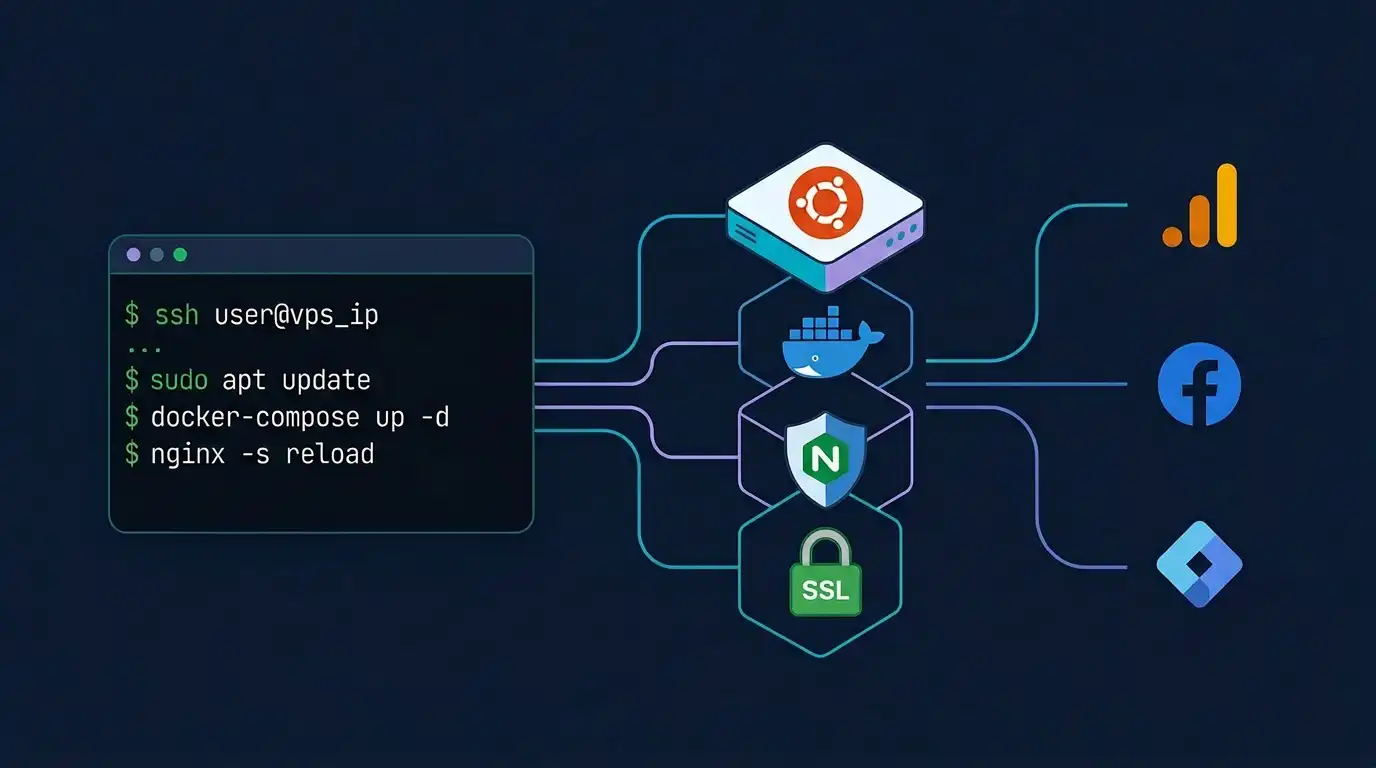
Server-side tracking has become the standard for accurate conversion data. But managed hosting services charge monthly fees that add up fast — especially when you are running multiple domains or handling high traffic volumes.
If you have a VPS (Virtual Private Server) running Ubuntu, you can host your own server-side Google Tag Manager container for the cost of the server itself. No third-party platform fees. Full control over your infrastructure, your data, and your uptime.
This guide walks you through the entire process — from a fresh Ubuntu VPS to a working server-side GTM setup with Docker, Nginx, SSL, and a custom subdomain. Every step includes the actual SSH commands you will run. No hand-waving, no skipped steps.
Whether you are a developer setting this up for your own ecommerce store, an agency building infrastructure for clients, or a technical marketer who wants to understand what happens under the hood — this is the reference you need.
Table of Contents
- What You Need Before Starting
- How the Architecture Works
- Step 1: Prepare Your Ubuntu VPS
- Step 2: Install Docker
- Step 3: Get Your GTM Container Config
- Step 4: Run the Preview Server
- Step 5: Run the Tagging Server
- Step 6: Set Up Your Custom Subdomain
- Step 7: Install Nginx as a Reverse Proxy
- Step 8: Install SSL with Let's Encrypt
- Step 9: Configure GTM and Verify
- Step 10: Run Containers on Startup
- Ongoing Maintenance
- Common Mistakes to Avoid
- Self-Hosted vs Managed Hosting
- FAQ
- Conclusion
What You Need Before Starting
Before you SSH into your server, make sure you have the following ready:
- A VPS running Ubuntu 22.04 or 24.04 LTS — from any provider (Contabo, DigitalOcean, Vultr, Hetzner, Linode, AWS EC2, etc.). Minimum 1 vCPU and 1 GB RAM is sufficient for low-to-moderate traffic. Google's documentation notes that the tagging server uses at most 1 vCPU — additional vCPUs are not utilized and can affect autoscaling negatively.
- A registered domain name — you will create a subdomain like
track.yourdomain.comorgtm.yourdomain.comto point to your VPS. - SSH access — you need to be able to connect to your VPS via terminal.
- A Google Tag Manager server container — created in your GTM account (we will cover how to get the config string).
- Basic command line comfort — you don't need to be a Linux expert, but you should be comfortable running commands in a terminal.
How the Architecture Works
Before running any commands, it helps to understand what you are building. Google's server-side tagging runs as a Node.js application packaged inside a Docker image. You will run two separate Docker containers on your VPS:
- Preview Server — used by GTM's preview/debug mode. You need exactly one instance. It must not be autoscaled.
- Tagging Server (SST) — the production entry point that handles all incoming tracking requests. This is what your website sends data to. It proxies preview requests to the preview server and processes everything else.
In front of these containers, you will run Nginx as a reverse proxy that handles SSL termination and routes external HTTPS requests to the correct Docker container on localhost. Visitors and browsers only interact with Nginx — they never touch the Docker containers directly.
The data flow looks like this:
Browser → track.yourdomain.com (Nginx + SSL) → Docker tagging container (port 8080) → Platforms (GA4, Meta, Google Ads, etc.)
Step 1: Prepare Your Ubuntu VPS
Connect to your VPS via SSH:
ssh root@YOUR_SERVER_IPIf you use an SSH key (recommended):
ssh -i ~/.ssh/your_key root@YOUR_SERVER_IPOnce connected, update the system packages:
sudo apt update && sudo apt upgrade -yInstall essential utilities:
sudo apt install -y curl wget git ufw nanoSet up the firewall to allow SSH, HTTP, and HTTPS traffic:
sudo ufw allow OpenSSH
sudo ufw allow 'Nginx Full'
sudo ufw enable
When prompted, type y to confirm enabling the firewall.
Step 2: Install Docker
Google's server-side tagging server is distributed as a Docker image. Install Docker using the official method:
# Remove any old versions
sudo apt remove -y docker docker-engine docker.io containerd runc

# Install prerequisites
sudo apt install -y ca-certificates curl gnupg

# Add Docker's official GPG key
sudo install -m 0755 -d /etc/apt/keyrings
curl -fsSL https://download.docker.com/linux/ubuntu/gpg | sudo gpg --dearmor -o /etc/apt/keyrings/docker.gpg
sudo chmod a+r /etc/apt/keyrings/docker.gpg

# Add the Docker repository
echo \
  "deb [arch=$(dpkg --print-architecture) signed-by=/etc/apt/keyrings/docker.gpg] https://download.docker.com/linux/ubuntu \
  $(. /etc/os-release && echo "$VERSION_CODENAME") stable" | \
  sudo tee /etc/apt/sources.list.d/docker.list > /dev/null

# Install Docker Engine
sudo apt update
sudo apt install -y docker-ce docker-ce-cli containerd.io docker-buildx-plugin docker-compose-plugin

# Verify Docker is running
sudo docker run hello-world
You should see a "Hello from Docker!" message confirming the installation succeeded.
Optionally, add your user to the docker group so you don't need sudo for every docker command:
sudo usermod -aG docker $USERLog out and back in for this to take effect.
Step 3: Get Your GTM Container Config String
This step happens in your browser, not in the terminal.
- Go to tagmanager.google.com.
- If you don't already have a server container, create one: click Create Container, name it (e.g., "My Server Container"), and select Server as the target platform.
- Once in the server container workspace, click the Container ID in the top-right corner of the page.
- Click "Manually provision tagging server".
- Copy the Container Config string. It will look something like:
aW50ZXJuYWwtYXV0aC...(a long Base64-encoded string).
Save this string — you will use it in the next two steps.
Step 4: Run the Preview Server
Back in your SSH terminal, pull the official GTM server-side Docker image and start the preview server:
# Pull the latest stable image
sudo docker pull gcr.io/cloud-tagging-10302018/gtm-cloud-image:stable

# Run the preview server on port 8081
sudo docker run -d \
  --name gtm-preview \
  --restart unless-stopped \
  -p 8081:8080 \
  -e CONTAINER_CONFIG='YOUR_CONTAINER_CONFIG_STRING' \
  -e RUN_AS_PREVIEW_SERVER=true \
  gcr.io/cloud-tagging-10302018/gtm-cloud-image:stable
Replace YOUR_CONTAINER_CONFIG_STRING with the actual config string you copied from GTM.
Verify it is running:
curl http://localhost:8081/healthyYou should get a 200 OK response. If you see an error, check the container logs:
sudo docker logs gtm-previewImportant: You must run exactly one preview server instance. Do not scale this to multiple instances.
Step 5: Run the Tagging Server
Now start the main tagging server. This container will handle all production tracking requests:
sudo docker run -d \
  --name gtm-tagging \
  --restart unless-stopped \
  -p 8080:8080 \
  -e CONTAINER_CONFIG='YOUR_CONTAINER_CONFIG_STRING' \
  -e PREVIEW_SERVER_URL='https://track.yourdomain.com/preview/' \
  gcr.io/cloud-tagging-10302018/gtm-cloud-image:stable
Note: The PREVIEW_SERVER_URL needs to be the HTTPS URL where your preview server will be accessible. We haven't set up SSL yet, so use the URL you plan to configure (we will set it up in Steps 7 and 8). You may need to restart this container after SSL is configured.
Verify the tagging server:
curl http://localhost:8080/healthyAgain, a 200 OK response means the container is running correctly.
Step 6: Set Up Your Custom Subdomain
Go to your domain registrar's DNS management panel (Namecheap, Cloudflare, GoDaddy, or wherever your domain DNS is managed) and create an A record:
| Type | Host | Value | TTL |
|---|---|---|---|
| A | track | YOUR_SERVER_IP | Auto or 1800 |
This creates track.yourdomain.com pointing to your VPS. You can use any subdomain name — gtm, data, analytics, ss — but track is the most common convention.
Wait for DNS propagation (usually 5–30 minutes). You can check with:
dig track.yourdomain.com +shortThis should return your server's IP address.
Why this matters for tracking: Google recommends hosting your server-side tagging endpoint on the same origin or as a subdomain of your website. When the tracking subdomain shares the same registrable domain as your site, cookies set by the server are treated as genuine first-party cookies — which is critical for bypassing Safari ITP restrictions and extending cookie lifetimes.
Step 7: Install Nginx as a Reverse Proxy
Nginx will sit in front of your Docker containers, handle SSL, and route requests to the correct container:
sudo apt install -y nginxCreate a new Nginx configuration file for your tracking subdomain:
sudo nano /etc/nginx/sites-available/track.yourdomain.comPaste the following configuration (replace track.yourdomain.com with your actual subdomain):
server {
    listen 80;
    server_name track.yourdomain.com;

    # Preview server — route /preview/ to port 8081
    location /preview/ {
        proxy_pass http://127.0.0.1:8081/;
        proxy_set_header Host $host;
        proxy_set_header X-Real-IP $remote_addr;
        proxy_set_header X-Forwarded-For $proxy_add_x_forwarded_for;
        proxy_set_header X-Forwarded-Proto $scheme;
        proxy_read_timeout 60s;
        proxy_send_timeout 60s;
    }

    # Tagging server — route everything else to port 8080
    location / {
        proxy_pass http://127.0.0.1:8080;
        proxy_set_header Host $host;
        proxy_set_header X-Real-IP $remote_addr;
        proxy_set_header X-Forwarded-For $proxy_add_x_forwarded_for;
        proxy_set_header X-Forwarded-Proto $scheme;
    }
}
Enable the site and test the configuration:
# Create a symlink to enable the site
sudo ln -s /etc/nginx/sites-available/track.yourdomain.com /etc/nginx/sites-enabled/

# Test Nginx configuration for syntax errors
sudo nginx -t

# If the test passes, reload Nginx
sudo systemctl reload nginx
At this point, http://track.yourdomain.com/healthy should return a 200 response (over plain HTTP — we will add SSL next).
Step 8: Install SSL with Let's Encrypt
Server-side tracking requires HTTPS. The preview server URL must be HTTPS, and browsers will only send data to HTTPS endpoints. Let's Encrypt provides free SSL certificates via Certbot:
# Install Certbot and the Nginx plugin
sudo apt install -y certbot python3-certbot-nginx

# Obtain and install the certificate
sudo certbot --nginx -d track.yourdomain.com
Certbot will ask for your email address (for renewal notifications) and whether to redirect HTTP to HTTPS. Select yes to redirect — all tracking requests should go over HTTPS.
Verify the certificate installed correctly:
curl -I https://track.yourdomain.com/healthyYou should see HTTP/2 200 with a valid SSL connection.
Certbot automatically sets up a cron job for auto-renewal. You can test it with:
sudo certbot renew --dry-runStep 9: Configure GTM and Verify
Now that your server is running with SSL, update the tagging server's preview URL. First, stop and remove the tagging container, then restart it with the correct HTTPS preview URL:
# Stop and remove the old tagging container
sudo docker stop gtm-tagging
sudo docker rm gtm-tagging

# Restart with the correct HTTPS preview URL
sudo docker run -d \
  --name gtm-tagging \
  --restart unless-stopped \
  -p 8080:8080 \
  -e CONTAINER_CONFIG='YOUR_CONTAINER_CONFIG_STRING' \
  -e PREVIEW_SERVER_URL='https://track.yourdomain.com/preview/' \
  gcr.io/cloud-tagging-10302018/gtm-cloud-image:stable
Now configure GTM to use your server:
- In Google Tag Manager, go to your server container.
- Navigate to Admin → Container Settings.
- Enter
https://track.yourdomain.comin the Server container URL field. - Click Save.
- Click the Preview button in your workspace.
- In a separate browser tab, visit
https://track.yourdomain.com. - If the preview panel shows the request, your setup is working correctly.
Step 10: Run Containers on Startup
The --restart unless-stopped flag we used earlier ensures Docker restarts the containers if they crash or if the server reboots. But let's make sure Docker itself starts on boot:
sudo systemctl enable dockerVerify both containers are running:
sudo docker psYou should see both gtm-preview and gtm-tagging listed with status "Up".
To check resource usage:
sudo docker stats --no-streamThis shows CPU and memory usage for each container. For a low-traffic site, expect minimal resource consumption — well under 512 MB combined.
Ongoing Maintenance
Self-hosting means you are responsible for keeping things running. Here is what ongoing maintenance looks like:
Update the Docker Image
Google periodically releases updated versions of the gtm-cloud-image with security patches and new features. Check for updates at least monthly:
# Pull the latest image
sudo docker pull gcr.io/cloud-tagging-10302018/gtm-cloud-image:stable

# Recreate the preview server
sudo docker stop gtm-preview && sudo docker rm gtm-preview
sudo docker run -d \
  --name gtm-preview \
  --restart unless-stopped \
  -p 8081:8080 \
  -e CONTAINER_CONFIG='YOUR_CONTAINER_CONFIG_STRING' \
  -e RUN_AS_PREVIEW_SERVER=true \
  gcr.io/cloud-tagging-10302018/gtm-cloud-image:stable

# Recreate the tagging server
sudo docker stop gtm-tagging && sudo docker rm gtm-tagging
sudo docker run -d \
  --name gtm-tagging \
  --restart unless-stopped \
  -p 8080:8080 \
  -e CONTAINER_CONFIG='YOUR_CONTAINER_CONFIG_STRING' \
  -e PREVIEW_SERVER_URL='https://track.yourdomain.com/preview/' \
  gcr.io/cloud-tagging-10302018/gtm-cloud-image:stable
Monitor Server Health
Set up a simple health check. You can use a free uptime monitoring service or a cron job:
# Add to crontab: check health every 5 minutes
(crontab -l 2>/dev/null; echo "*/5 * * * * curl -sf https://track.yourdomain.com/healthy > /dev/null || systemctl restart docker") | crontab -
This checks the health endpoint every 5 minutes and restarts Docker if the server stops responding.
Keep Ubuntu Updated
# Run monthly or set up unattended upgrades
sudo apt update && sudo apt upgrade -y
SSL Certificate Renewal
Certbot handles this automatically. Certificates renew every 90 days. Verify the auto-renewal timer is active:
sudo systemctl status certbot.timerCommon Mistakes to Avoid
After working with many server-side tracking setups, these are the errors that come up most frequently:
- Using HTTP instead of HTTPS for the preview URL. The
PREVIEW_SERVER_URLenvironment variable must be an HTTPS URL. If you set it tohttp://, preview mode will fail silently and you will spend hours debugging. - Forgetting to open firewall ports. If you configured UFW but forgot to allow Nginx traffic, external requests will timeout. Always run
sudo ufw allow 'Nginx Full'before testing. - Running multiple preview server instances. Google explicitly states you must run exactly one preview server. Scaling it will break preview mode.
- Not setting the server container URL in GTM. The setup isn't complete until you enter your
https://track.yourdomain.comURL in GTM's Admin → Container Settings → Server container URL field. - Ignoring Docker image updates. The
gtm-cloud-imagereceives regular updates. Running a months-old version can cause compatibility issues with new GTM features and may have unpatched security vulnerabilities. - Using a shared IP that triggers Safari ITP. If your VPS IP is used by many other tracking setups (common on cheap shared hosting), Safari's Intelligent Tracking Prevention may flag it and cap your cookie lifetime to 7 days. Dedicated IPs are preferred.
- Skipping event deduplication. If you send events from both the browser (Meta Pixel, GA4 tag) and the server (Meta CAPI, GA4 Measurement Protocol), you must include matching
event_idvalues. Without this, conversions are double-counted.
Self-Hosted vs Managed Hosting: When Each Makes Sense
Self-hosting your server-side GTM on a VPS gives you maximum control and can be cost-effective — especially if you already have server infrastructure. But it requires you to handle Docker updates, SSL renewals, server monitoring, security patches, and troubleshooting when something breaks at 2 AM.
Managed server-side GTM hosting services handle all of this for you. You get a working server container without managing infrastructure. The tradeoff is a monthly fee on top of any server costs.
| Factor | Self-Hosted VPS | Managed Hosting |
|---|---|---|
| Monthly cost | VPS cost only ($5–$10/mo for most sites) | Provider fee ($20–$200+/mo depending on plan) |
| Setup effort | High — follow this guide step by step | Low — often one-click or guided setup |
| Maintenance | You handle Docker updates, SSL, server patches | Provider handles everything |
| Customization | Full control over server config, ports, firewall | Limited to provider's options |
| Troubleshooting | You debug issues yourself | Support team helps |
| Best for | Developers, agencies with DevOps capability | Marketers, store owners, teams without server admins |
If you want the tracking benefits of server-side GTM without managing infrastructure, ServerPixel BD offers managed server-side GTM hosting with setup support — including Meta CAPI configuration, GA4 server-side setup, custom domain provisioning, and ongoing maintenance. You can start with a free trial to test the infrastructure before committing.
If you prefer to manage your own servers and follow the steps in this guide, that works too. The tracking benefits are the same either way — what differs is who maintains the infrastructure.
Conclusion
Setting up server-side tracking on your own VPS is not a five-minute job, but it is entirely achievable with the steps in this guide. Once running, you get the same tracking benefits as any managed solution — first-party cookies, ad blocker resilience, server-to-server data transfer for Meta CAPI and GA4 — at a fraction of the ongoing cost.
The key is proper setup and consistent maintenance. Use HTTPS everywhere. Keep Docker images updated. Monitor the health endpoint. Set up event deduplication if you run both browser and server-side tags.
If you followed every step in this guide and something isn't working, check the Docker logs (docker logs gtm-tagging), verify your DNS is resolving, and confirm your CONTAINER_CONFIG string is correct. Most issues come down to one of those three things.
For those who want the tracking benefits without the server management, ServerPixel BD's managed hosting handles the infrastructure so you can focus on what the data tells you rather than how the server runs. Start a free trial or learn more about how we work.
Either way — self-hosted or managed — server-side tracking is the foundation for accurate conversion data in 2026 and beyond. The browser-only era of tracking is ending. Building the infrastructure now puts you ahead.
This guide is maintained by the ServerPixel BD team. We provide server-side GTM hosting, Meta Conversions API setup, GA4 server-side implementation, and tracking infrastructure for ecommerce businesses and agencies. For questions or corrections, reach out at admin@serverpixelbd.com.
Last updated: April 2026
Related reading:
Frequently Asked Questions
For most small-to-medium traffic sites, 1 vCPU and 1 GB RAM is sufficient. Google's documentation notes that the tagging server uses at most 1 vCPU. If you handle heavy traffic (millions of requests per month), consider 2 GB RAM and monitor resource usage with <code>docker stats</code>.
Tags
Need help with server-side tracking?
Explore ServerPixel BD services, plugins, and tracking solutions to improve data accuracy and marketing performance.